
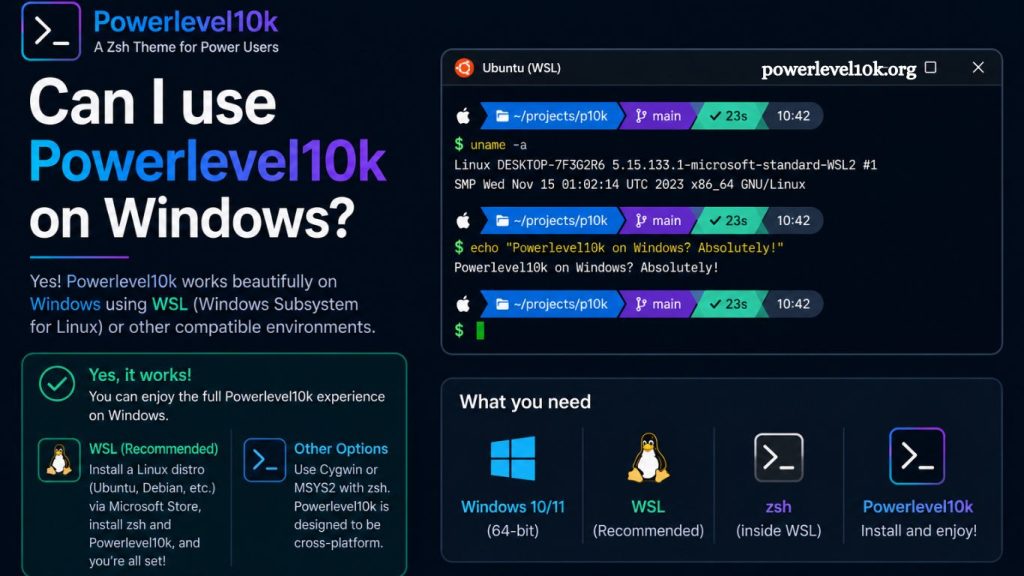
Powerlevel10k is one of the most popular Zsh themes among developers who value speed, customization, and a visually rich terminal experience. Windows users often wonder whether they can use this powerful theme without switching entirely to Linux or macOS. The short answer is yes, but the setup requires a proper environment layer because Powerlevel10k is designed primarily for Unix-like systems.
This guide explains how Powerlevel10k works on Windows, what tools are required, how to install it correctly, and what limitations or performance considerations you should expect.
Understanding Powerlevel10k and Its Requirements
Powerlevel10k is a theme for Zsh (Z shell), a Unix shell that extends the functionality of traditional command-line interfaces. It enhances the terminal with features such as:
- Git status indicators
- Command execution speed display
- Icons and glyph-based UI elements
- Custom prompts and segments
- Fast rendering performance
Zsh itself does not run natively on Windows. Powerlevel10k depends on a Unix-like environment, which means Windows must simulate or provide compatibility through additional layers.
Read More: Powerlevel10k Configuration Wizard Explained and Setup Guide
Windows Command Prompt and PowerShell do not support Zsh themes directly, which creates the main limitation. However, modern Windows systems offer multiple solutions that enable full compatibility.
Can Powerlevel10k Run on Windows?
Powerlevel10k does not run directly on Windows Command Prompt or PowerShell. Successful usage requires an intermediate environment that supports Zsh.
Powerlevel10k works on Windows through the following options:
- Windows Subsystem for Linux (WSL)
- Git Bash (limited compatibility)
- MSYS2 or Cygwin (advanced setups)
- Virtual machines running Linux
Among these, WSL provides the most stable and recommended experience.
Best Method: Using Powerlevel10k with WSL
Windows Subsystem for Linux allows Windows users to run a real Linux environment without dual-booting. This approach provides full compatibility with Zsh and Powerlevel10k.
Step 1: Install WSL
Run the following command in PowerShell as administrator:
wsl –install
Restart the system after installation. Ubuntu is typically installed by default.
Step 2: Install Zsh
Open your WSL terminal and run:
- sudo apt update
- sudo apt install zsh -y
Set Zsh as the default shell:
chsh -s $(which zsh)
Step 3: Install Oh My Zsh
Powerlevel10k integrates best with Oh My Zsh, a framework for managing Zsh configuration.
Install it using:
sh -c “$(curl -fsSL https://raw.githubusercontent.com/ohmyzsh/ohmyzsh/master/tools/install.sh)”
Step 4: Install Powerlevel10k Theme
Clone the repository into your Oh My Zsh themes directory:
- git clone –depth=1 https://github.com/romkatv/powerlevel10k.git \
- ${ZSH_CUSTOM:-~/.oh-my-zsh/custom}/themes/powerlevel10k
Set the theme inside your .zshrc file:
- ZSH_THEME=”powerlevel10k/powerlevel10k”
Reload configuration:
- source ~/.zshrc
Step 5: Configure Powerlevel10k
First launch triggers a configuration wizard. This wizard helps customize:
- Prompt style
- Icons and symbols
- Terminal font support
- Git indicators
- Layout preferences
MesloLGS Nerd Font is recommended for proper icon rendering.
Alternative Method: Git Bash (Limited Support)
Git for Windows includes Git Bash, which offers a minimal Unix-like shell environment. Powerlevel10k can run here, but functionality remains limited.
- Limitations of Git Bash
- Incomplete Zsh compatibility
- Slower performance for prompt rendering
- Missing Unicode and font support issues
- Limited plugin ecosystem
Git Bash works for experimentation but not for production-grade development environments using Powerlevel10k.
Using Powerlevel10k with Windows Terminal
Windows Terminal significantly improves the experience by supporting multiple profiles and offering better rendering.
After installing WSL and Powerlevel10k:
- Open Windows Terminal
- Select WSL (Ubuntu) profile
- Set a Nerd Font in settings
- Enable GPU rendering for smooth performance
Windows Terminal acts as the frontend, while WSL runs the actual shell environment.
Performance Considerations on Windows
Powerlevel10k is optimized for speed and often outperforms other Zsh themes. Performance on Windows depends on the environment used.
- Best Performance Setup
- WSL2 (recommended)
- Windows Terminal
- SSD storage
- Updated GPU drivers
- Performance Bottlenecks
- WSL1 (slower filesystem access)
- Heavy antivirus scanning
- Poor font rendering configuration
- Misconfigured shell plugins
Proper setup ensures near-native Linux performance.
Common Installation Issues
Fonts Not Displaying Correctly
Missing icons usually indicate a font problem. Installing Nerd Fonts resolves this issue.
Slow Terminal Startup
Excess plugins or misconfigured .zshrc files may delay startup. Powerlevel10k includes optimization tools to diagnose this.
WSL Not Recognized
Ensure virtualization is enabled in BIOS settings and WSL is fully installed.
Advantages of Using Powerlevel10k on Windows
Powerlevel10k significantly enhances productivity for developers working on Windows environments.
- Key Benefits
- Clean and informative terminal UI
- Faster command-line awareness
- Git integration for version control
- Cross-platform development consistency
- Highly customizable appearance
Developers working with Linux servers or cloud systems benefit from maintaining a familiar terminal setup across platforms.
Limitations You Should Expect
Despite strong compatibility through WSL, certain limitations remain:
- Not a native Windows application
- Dependency on the Linux subsystem
- Occasional file system latency
- Font configuration required
- Slight overhead compared to native Linux systems
These limitations are generally minor and manageable for most development workflows.
Should You Use Powerlevel10k on Windows?
Powerlevel10k fits well into Windows-based development environments, especially when paired with WSL2. Developers who frequently use Git, remote servers, or containerized environments will benefit the most.
Users who rely heavily on Windows-native tooling without Linux integration may find the setup unnecessary or overly complex.
Frequently Asked Questions
Can Powerlevel10k run directly on Windows?
Powerlevel10k does not run natively on Windows Command Prompt or PowerShell. It requires a Unix-like environment such as WSL.
What is the best way to use Powerlevel10k on Windows?
Windows Subsystem for Linux (WSL2) provides the most stable and fully compatible setup for running Powerlevel10k.
Does Powerlevel10k work with PowerShell?
Powerlevel10k is not compatible with PowerShell because it depends on Zsh, which is not supported natively.
Is WSL required for Powerlevel10k on Windows?
WSL is not the only option, but it is the recommended method for full functionality and smooth performance.
Why are icons not showing in Powerlevel10k on Windows?
Missing icons usually occur due to incorrect fonts. Installing Nerd Fonts, such as MesloLGS, resolves this issue.
Is Powerlevel10k slow on Windows?
Performance is generally fast when using WSL2 and Windows Terminal. Slowdowns occur with misconfiguration or WSL1.
Is Powerlevel10k worth using on Windows?
Powerlevel10k is useful for developers who work with Git, Linux tools, or cloud systems, especially through WSL integration.
Conclusion
Powerlevel10k works effectively on Windows when used through WSL, delivering a fast, customizable, and developer-friendly terminal experience. Native Windows support is not available, yet modern tools like WSL2 and Windows Terminal bridge this gap efficiently. With proper setup, Powerlevel10k enhances productivity, improves Git visibility, and provides a clean command-line interface suitable for professional development workflows.