
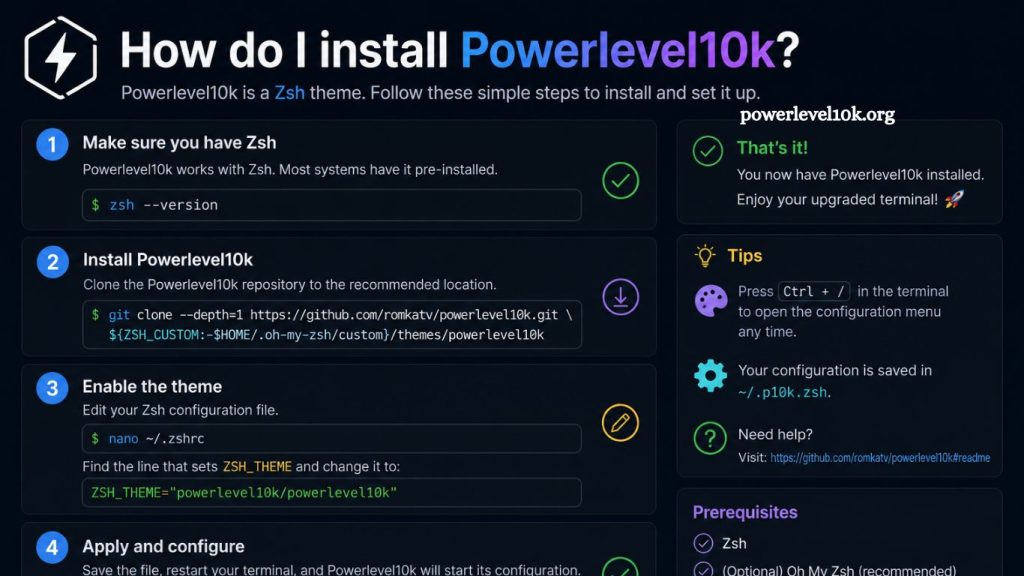
Powerlevel10k transforms a basic terminal into a fast, modern, and highly customizable workspace. Developers, system administrators, and Linux users prefer this powerful Zsh theme for its productivity gains and cleaner command-line experience. Rich icons, Git integration, instant prompt loading, and flexible customization make Powerlevel10k one of the most popular terminal themes available today.
Learning how to install Powerlevel10k helps users create a professional development environment within minutes. This guide explains every installation step for macOS, Linux, and Windows users running Zsh.
What Is Powerlevel10k?
Powerlevel10k is a high-performance theme for Zsh. It builds on the popular Powerlevel9k project but delivers faster loading times and better customization options.
Users choose Powerlevel10k because it offers:
- Lightning-fast terminal performance
- Beautiful command-line prompts
- Git status integration
- Instant prompt rendering
- Custom icons and fonts
- Flexible configuration wizard
- Support for multiple operating systems
Many developers use Powerlevel10k with Oh My Zsh to improve workflow efficiency and terminal readability.
Read More: Powerlevel10k Guide: Customize Your Zsh Terminal
Requirements Before Installing Powerlevel10k
Successful installation requires a few basic tools. Verify these dependencies before starting.
Install Zsh
Powerlevel10k only works with Zsh. Most modern Linux distributions and macOS systems already include Zsh.
Check your current shell:
echo $SHELLCheck the installed Zsh version:
zsh --versionInstall Zsh on Ubuntu or Debian:
sudo apt update
sudo apt install zsh
Install Zsh on Fedora:
sudo dnf install zshInstall Zsh on Arch Linux:
sudo pacman -S zshInstall Zsh on macOS using Homebrew:
brew install zshSet Zsh as the default shell:
chsh -s $(which zsh)Restart the terminal after completing this step.
Install Oh My Zsh
Oh My Zsh simplifies Zsh management and theme customization. Most users install Powerlevel10k through Oh My Zsh because the setup becomes much easier.
Run this command to install Oh My Zsh:
sh -c "$(curl -fsSL https://raw.githubusercontent.com/ohmyzsh/ohmyzsh/master/tools/install.sh)"Git users can also install using wget:
sh -c "$(wget https://raw.githubusercontent.com/ohmyzsh/ohmyzsh/master/tools/install.sh -O -)"Terminal automatically reloads after installation finishes.
Download Powerlevel10k
Clone the Powerlevel10k repository into the Oh My Zsh themes directory.
Run this command:
git clone --depth=1 https://github.com/romkatv/powerlevel10k.git ${ZSH_CUSTOM:-$HOME/.oh-my-zsh/custom}/themes/powerlevel10kFast cloning with --depth=1 reduces download size and installation time.
Enable Powerlevel10k Theme
Open the .zshrc configuration file using Nano or Vim.
nano ~/.zshrcLocate this line:
ZSH_THEME="robbyrussell"Replace it with:
ZSH_THEME="powerlevel10k/powerlevel10k"Save the file and reload Zsh:
source ~/.zshrcPowerlevel10k launches its configuration wizard automatically after restarting the shell.
Install Recommended Fonts
Powerlevel10k works best with Meslo Nerd Fonts because many prompt icons require patched font support.
Download recommended fonts from the official GitHub release page or install them manually.
Install Fonts on macOS
Use Homebrew:
brew tap homebrew/cask-fonts
brew install font-meslo-lg-nerd-font
Install Fonts on Ubuntu and Debian
Download fonts manually:
mkdir -p ~/.local/share/fonts
cd ~/.local/share/fonts
wget https://github.com/romkatv/powerlevel10k-media/raw/master/MesloLGS%20NF%20Regular.ttf
fc-cache -fv
Install Fonts on Windows
Download Meslo Nerd Fonts and install them through the Windows font manager.
After installation, change terminal font settings to MesloLGS NF.
Configure Powerlevel10k
Powerlevel10k starts an interactive configuration wizard after activation.
Wizard options include:
- Prompt style
- Unicode support
- Character icons
- Prompt layout
- Colors
- Git status display
- Transient prompt settings
Answer each question according to personal preferences.
The configuration automatically saves inside the .p10k.zsh file.
Restart the terminal after setup finishes.
Verify Successful Installation
Proper installation displays:
- Colorful command prompts
- Git branch indicators
- Directory icons
- Execution status symbols
- Fast terminal startup
Run this command to confirm active configuration:
echo $ZSH_THEMEExpected output:
powerlevel10k/powerlevel10kCustomize Powerlevel10k
Powerlevel10k supports advanced customization for developers who want complete control over terminal appearance.
Open configuration:
nano ~/.p10k.zshUsers can customize:
- Prompt colors
- Icons
- Left and right prompt sections
- Time display
- Python virtual environment indicators
- Kubernetes context
- Battery status
- Background jobs
Reload configuration after changes:
source ~/.zshrcEnable Instant Prompt
Instant Prompt dPromptcally reduces startup time by rendering the prompt iPrompttely while plugins continue loading in the background.
Powerlevel10k enables this feature automatically during setup.
Verify Instant Prompt configuration inside. .zshrc:
# Enable Powerlevel10k instant prompt
if [[ -r "${XDG_CACHE_HOME:-$HOME/.cache}/p10k-instant-prompt-${(%):-%n}.zsh" ]]; then
  source "${XDG_CACHE_HOME:-$HOME/.cache}/p10k-instant-prompt-${(%):-%n}.zsh"
fi
Place this block near the top of the .zshrc file for best performance.
Install Powerlevel10k Without Oh My Zsh
Some users prefer lightweight Zsh setups without Oh My Zsh. Powerlevel10k also supports standalone installation.
Clone the repository:
git clone --depth=1 https://github.com/romkatv/powerlevel10k.git ~/powerlevel10kAdd this line to .zshrc:
source ~/powerlevel10k/powerlevel10k.zsh-themeReload Zsh:
source ~/.zshrcThe configuration wizard launches automatically.
Common Powerlevel10k Installation Errors
Installation problems usually involve fonts, permissions, or incorrect shell configuration.
Broken Icons
Incorrect fonts create unreadable prompt symbols.
Fix:
- Install Meslo Nerd Fonts
- Change terminal font settings
- Restart terminal
Theme Not Loading
Incorrect theme path inside .zshrc prevents loading.
Correct value:
ZSH_THEME="powerlevel10k/powerlevel10k"Slow Terminal Startup
Heavy plugins often reduce performance.
Solutions:
- Remove unused plugins
- Enable Instant Prompt
- Update Powerlevel10k
- Reduce plugin count
Permission Errors
Repository cloning may fail because of restricted permissions.
Fix ownership:
sudo chown -R $USER:$USER ~/.oh-my-zshUpdate Powerlevel10k
Regular updates improve compatibility and performance.
Update manually:
git -C ${ZSH_CUSTOM:-$HOME/.oh-my-zsh/custom}/themes/powerlevel10k pullReload the terminal afterward.
Remove Powerlevel10k
Users can uninstall Powerlevel10k anytime.
Delete repository:
rm -rf ${ZSH_CUSTOM:-$HOME/.oh-my-zsh/custom}/themes/powerlevel10kChange the theme inside .zshrc:
ZSH_THEME="robbyrussell"Reload Zsh:
source ~/.zshrcBest Plugins for Powerlevel10k
Powerlevel10k works extremely well with productivity-focused Zsh plugins.
Popular choices include:
zsh-autosuggestions
Suggests commands based on history.
Install:
git clone https://github.com/zsh-users/zsh-autosuggestions ${ZSH_CUSTOM:-~/.oh-my-zsh/custom}/plugins/zsh-autosuggestionszsh-syntax-highlighting
Highlights valid commands and syntax.
Install:
git clone https://github.com/zsh-users/zsh-syntax-highlighting.git ${ZSH_CUSTOM:-~/.oh-my-zsh/custom}/plugins/zsh-syntax-highlightingEnable plugins inside .zshrc:
plugins=(git zsh-autosuggestions zsh-syntax-highlighting)Reload configuration:
source ~/.zshrcPowerlevel10k Tips for Better Productivity
Professional developers optimize terminal workflow using advanced Powerlevel10k features.
Helpful tips include:
- Use transient prompts for a cleaner terminal history
- Enable Git status indicators
- Add Kubernetes context support
- Configure Python virtual environments
- Use concise prompt layouts
- Reduce unnecessary plugins
- Keep fonts updated
Efficient terminal customization improves navigation speed and command-line productivity.
Why Developers Prefer Powerlevel10k
Powerlevel10k combines performance, flexibility, and visual clarity in one package. Fast rendering and rich customization separate it from older Zsh themes.
Major advantages include:
- Excellent startup speed
- Modern visual design
- Easy configuration wizard
- Advanced Git integration
- Lightweight resource usage
- Cross-platform compatibility
- Strong community support
Developers working with Git repositories, cloud infrastructure, Docker, Kubernetes, or Python environments benefit significantly from its intelligent prompt features.
Frequently Asked Questions
What is Powerlevel10k used for?
Powerlevel10k improves the appearance and functionality of the Zsh terminal by adding fast prompts, Git integration, icons, and customization features.
Does Powerlevel10k work on Linux and macOS?
Yes, Powerlevel10k supports Linux, macOS, and Windows terminals running Zsh.
Do I need Oh My Zsh to install Powerlevel10k?
No, Powerlevel10k works with or without Oh My Zsh, although Oh My Zsh simplifies installation and management.
Which font works best with Powerlevel10k?
Meslo Nerd Font works best because it supports all icons and symbols used by Powerlevel10k.
Why are Powerlevel10k icons not displaying correctly?
Incorrect terminal fonts usually cause broken icons. Installing and enabling Meslo Nerd Font fixes this issue.
How do I update Powerlevel10k?
Update Powerlevel10k by running the Git pull command inside the Powerlevel10k theme directory.
Can beginners install Powerlevel10k easily?
Yes, beginners can install Powerlevel10k quickly using the built-in setup wizard and step-by-step installation process.
Conclusion
Powerlevel10k delivers a fast, modern, and highly customizable terminal experience for Zsh users. Simple installation steps, powerful Git integration, attractive prompts, and performance-focused features make it a top choice for developers and system administrators. Proper font configuration and plugin support further improve productivity and terminal usability.